Hidden Gems on the BERNINA 990

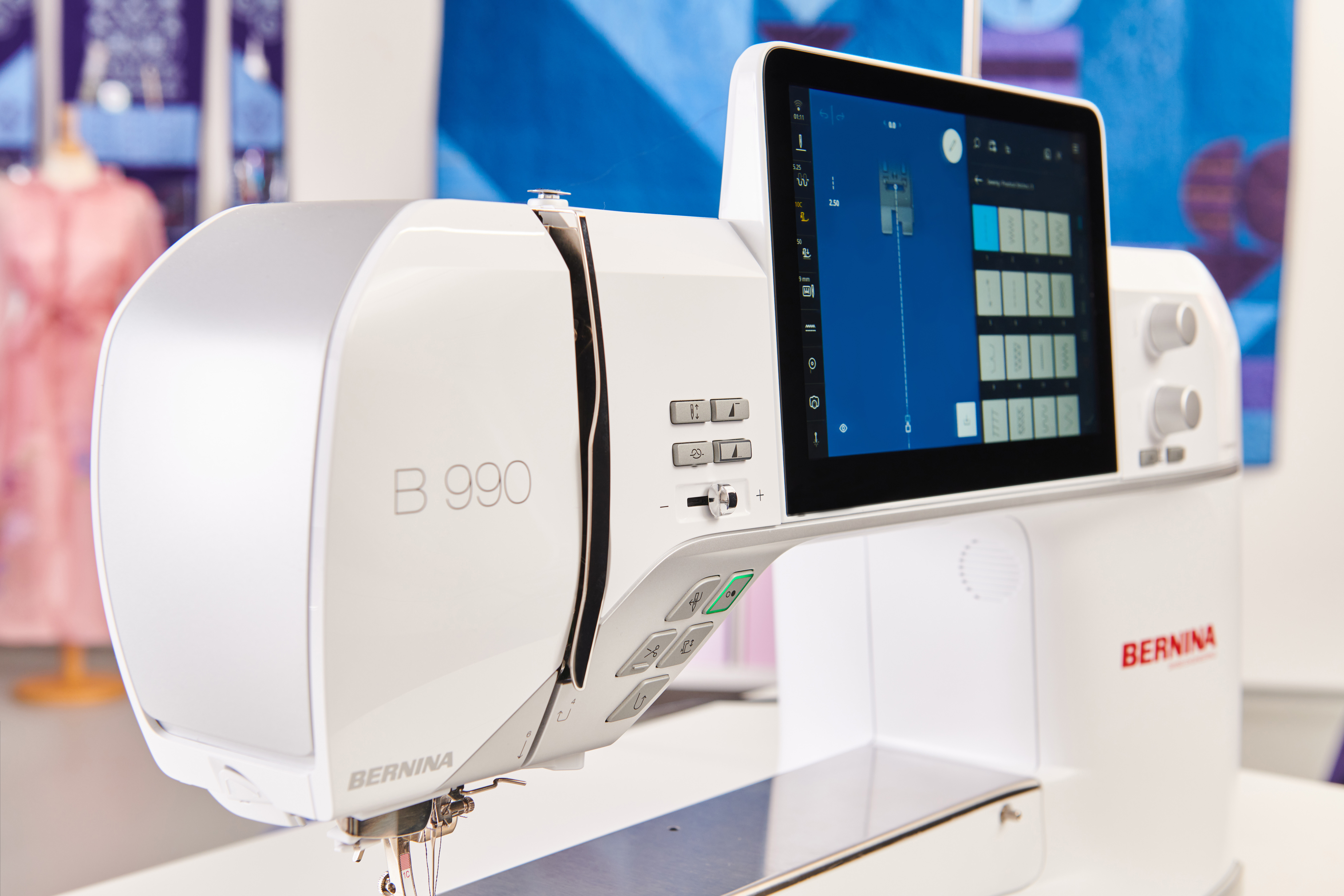
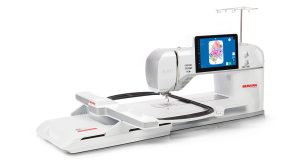
The BERNINA 990 is a powerhouse of BIG features, like, to start, its size. At 14” to the right of the needle, there is a lot of space for even your grandest projects. Add the camera and scanner and a whole suite of sewing, quilting, and embroidery features, and you’ll fall in love. But did you know that in addition to the features you may already know, there is a whole host of “hidden gems”? These are less-talked-about features that really add up to a great experience and can save you time and frustration. Maybe you’ve recently acquired a new BERNINA 990, or perhaps you’ve been sewing on yours for a while. Or maybe you’re just curious. Regardless, this post is for you!
Undo/Redo in Sewing
You may have been using the undo/redo feature in embroidery for a while, but this feature is also found in sewing on the B 990. So if you make a change to a stitch, you can go back a single step without having to clear all of your changes.
Text Descriptions
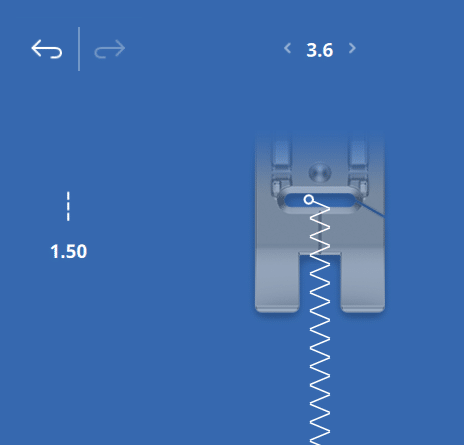
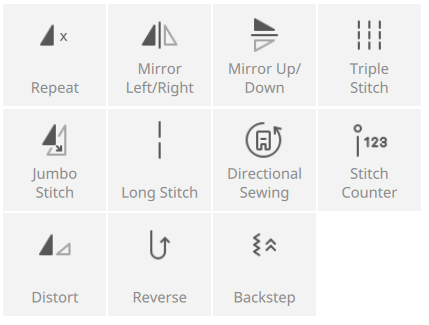
If you’re a current B 990 user, you’ve probably been using this feature without even thinking about it. Under most of the icons on the B 990, you’ll find a text description. So you no longer have to memorize the icons!
Mouse Control
That’s right, you can use a mouse with the B 990. So, especially when playing around with embroidery layouts, you can more easily select small items or just reduce arm fatigue by using a mouse to edit. Any USB mouse, wireless or wired, will work.
USB-C and USB-A Ports
Whether your mouse or USB stick is USB-C or USB-A, the machine has a port for you! This also gives you the ability to use a mouse and a stick at the same time, as long as one is USB-C and one is USB-A.
“Apply settings” in the Help Center Tutorials
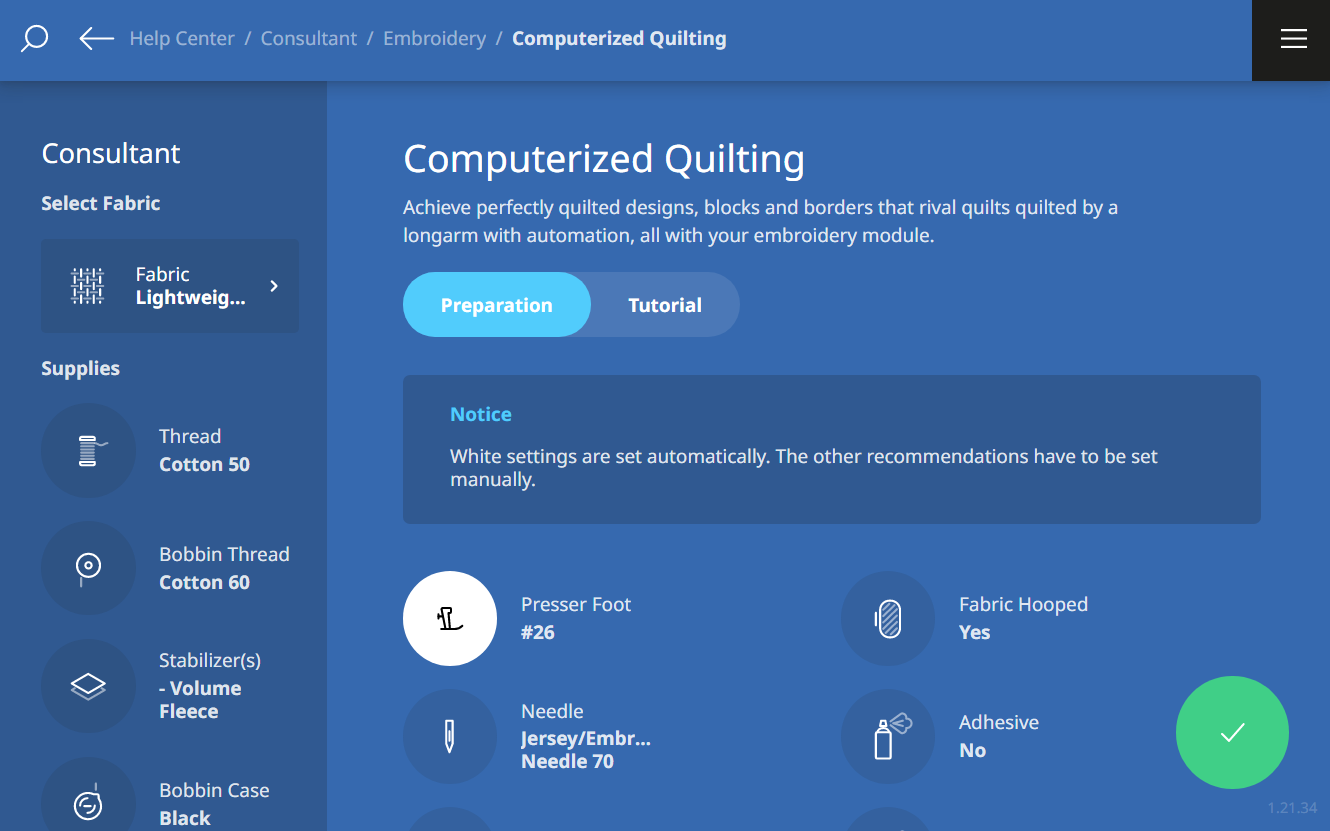
When viewing the tutorials in the help center, select your technique and then fabric type. You’ll see the recommended settings. Selecting the green “apply” icon will automatically apply any suggested changes indicated in white, like changing the tension, presser foot pressure, and more. You do still have to change your own needle, though!
Automatic Stitch Plate Recognition
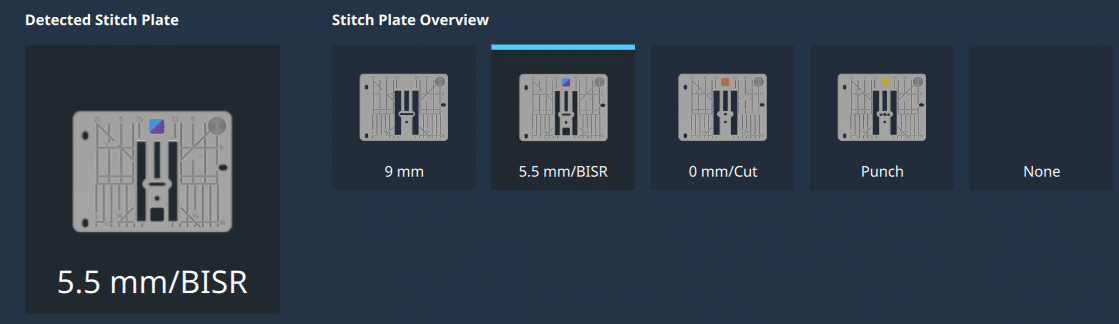
You’ll never accidentally break a needle by forgetting you have a straight stitch plate attached. The B 990 automatically recognizes the stitch plate with a special sensor. Three different stitch plates are included.
File Manager
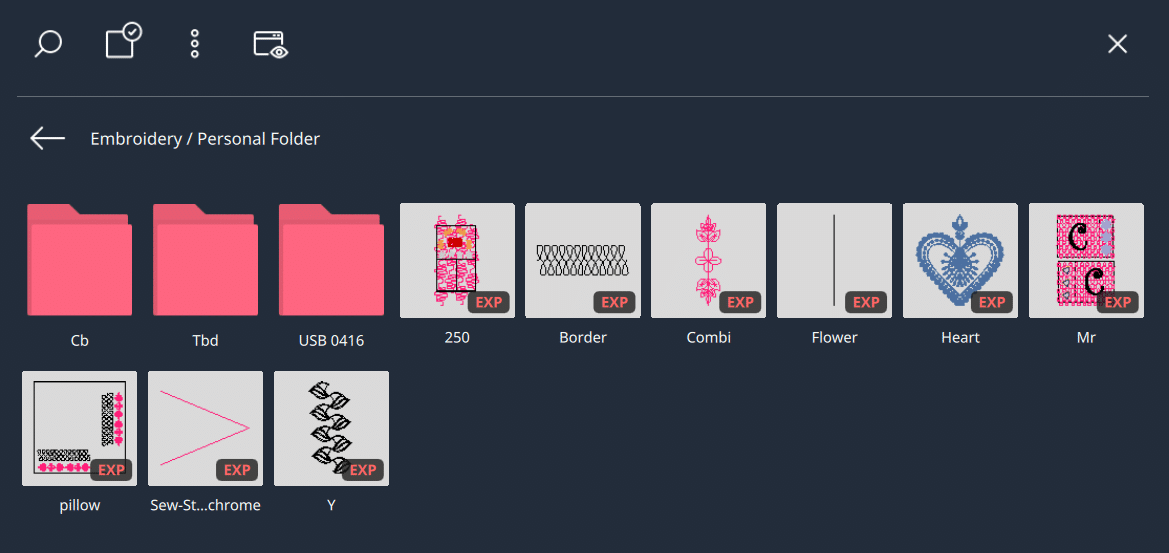
There are tons of stitches and designs on the B 990, and the more you play with your machine, the more files you’ll accumulate. When viewing the file manager, you can work with files much like you can on a computer – easily moving or deleting designs from one location to another, either one by one or by selecting multiples at once.
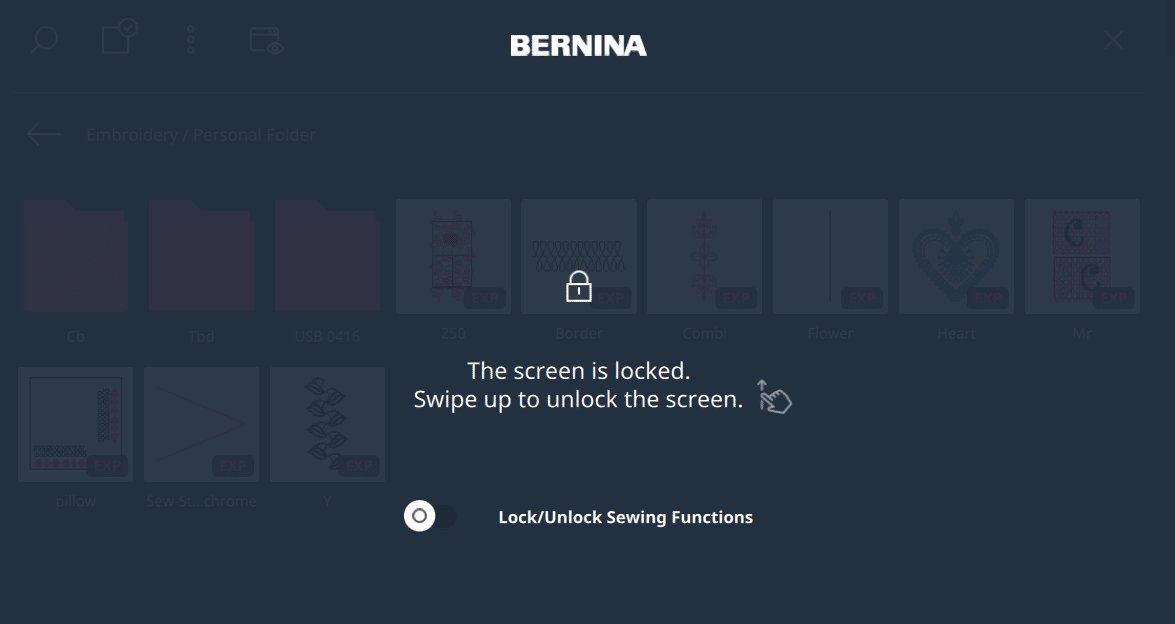
Lock Screen with Sewing Functions On or Off
Like eco mode on other BERNINA machines, you can lock the machine without turning it off, so you come back to your screen just as you left it. On the B 990, there is another level to this – you can lock the screen while still being able to sew. This is handy when you are working with large or bulky things and may accidentally touch the screen while maneuvering.
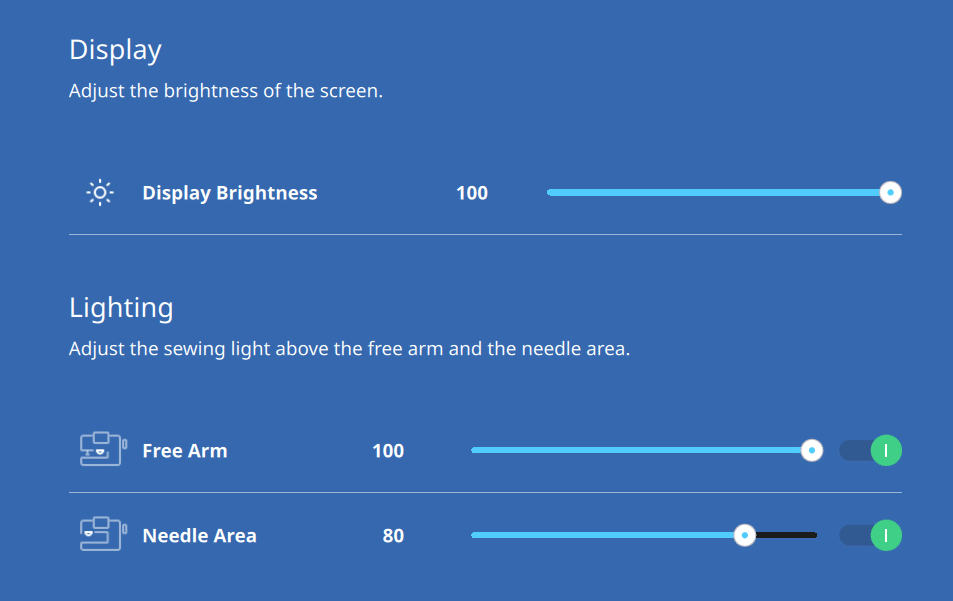
More Flexibility in Lighting Adjustments
The B 990 has LOTS of light – 90 LEDs to be exact. Some LEDs are in the needle area and others in the freearm area. You can adjust the level of lighting in both of these areas and/or turn them on or off. This is especially helpful when working with shiny fabrics.
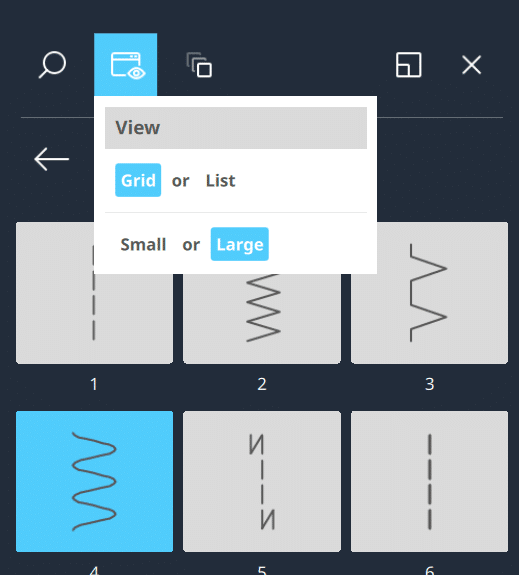
View Larger Thumbnails of Stitches and Designs
Are the design or stitch images a little too small to see clearly? You can change the thumbnail size of designs in the file manager menu to see a larger version.
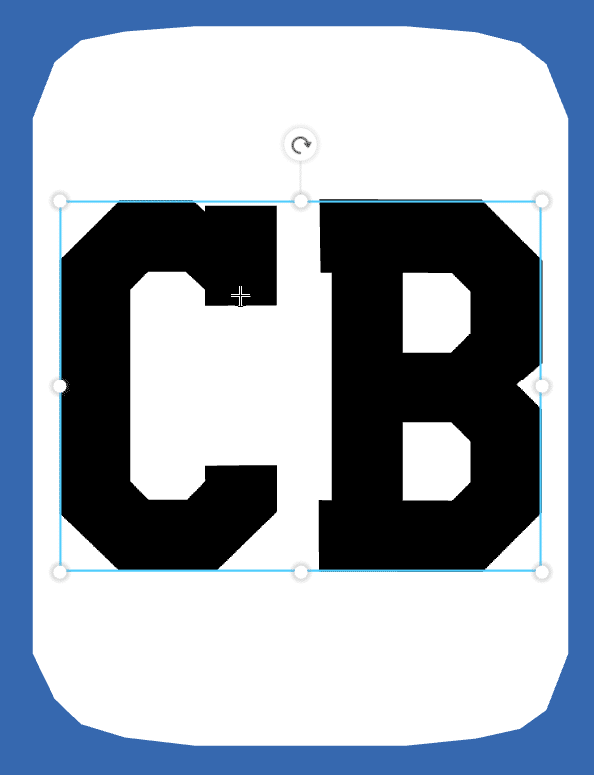
Unlimited Sizing of Embroidery Lettering
Whether you need small text for a quilt label or a huge monogram, you’ll find that the B 990 can stitch lettering beautifully at any size.
Horizontal View in Sewing
For a preview of how your stitch will look horizontally, you can do so with a simple toggle icon in the view menu. This is especially helpful with lettering.
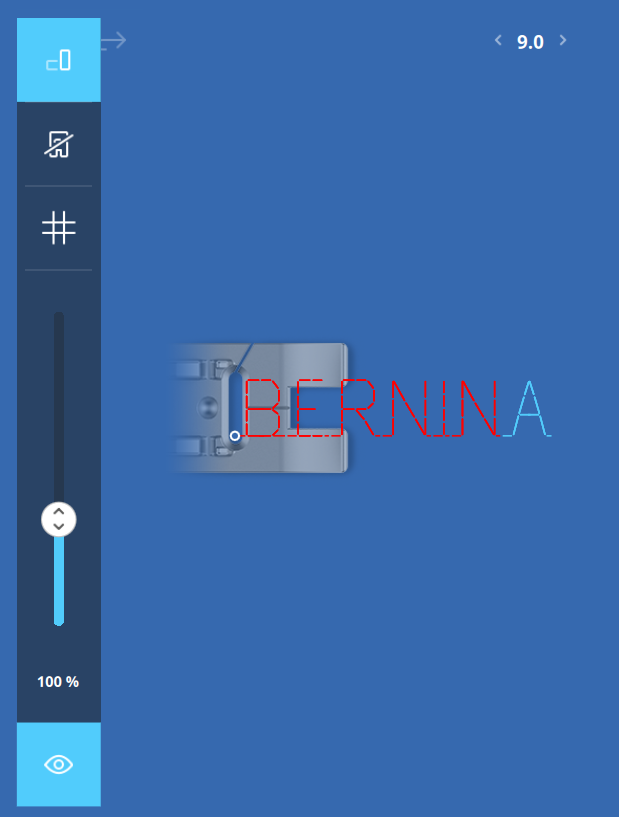
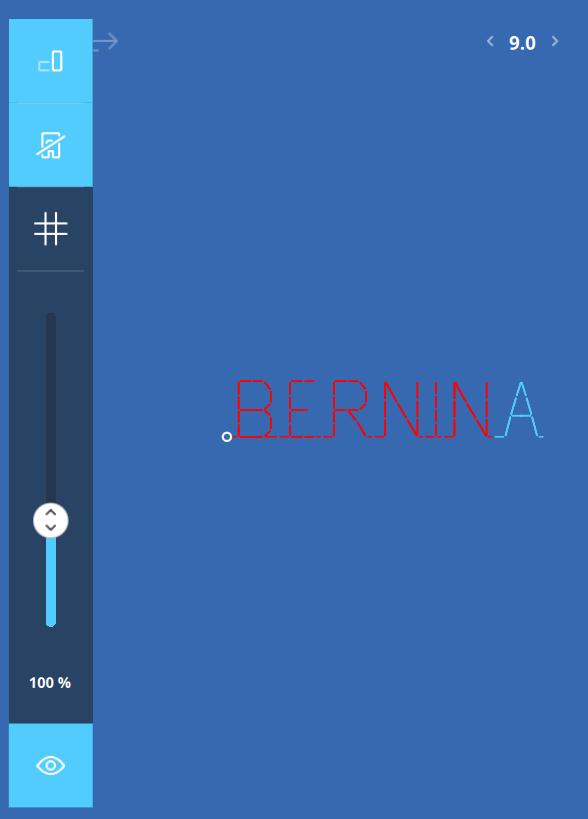
Turn Presser Foot View On or Off
While in the view menu, you can also toggle on or off the presser foot to give you a clearer view of your stitch.
Automatic Feed Dog Drop
If you’ve been using the B 990 for a while, you’ve probably benefitted from this feature without even really thinking about it! When switching from sewing to embroidery, the feed dogs automatically drop. And they automatically will raise again on the first stitch when switching to sewing. The feed dogs also automatically drop when working with the BERNINA Integrated Stitch Regulator.
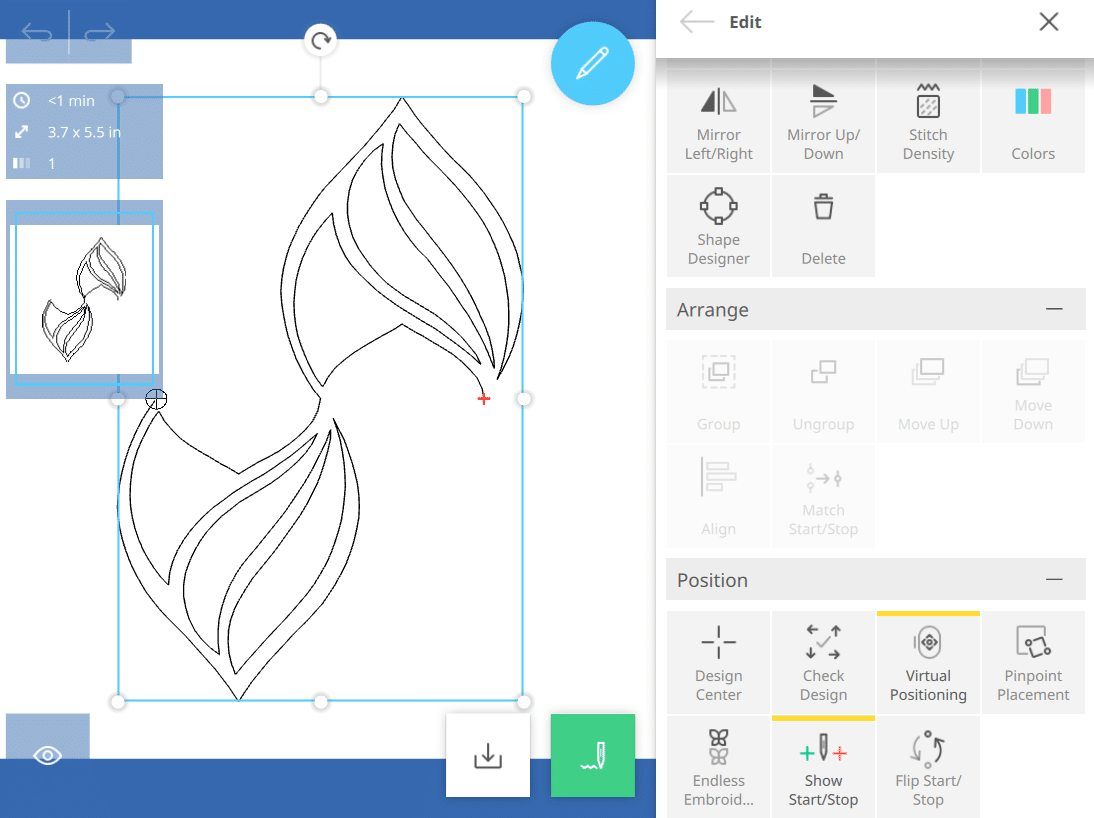
Flip Start/Stop
Does your design sew top to bottom, and you wish it sewed bottom to top? When working with customizable quilting designs, you can change the direction they will stitch with a single tap.
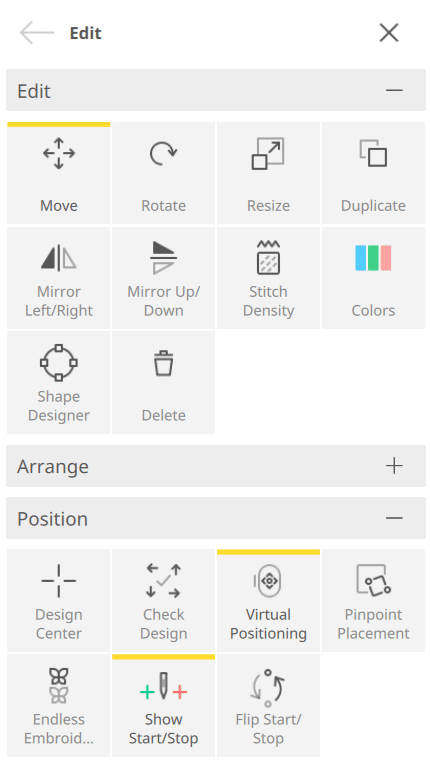
Collapsible Menus
The icons in the edit menus for both sewing and embroidery are grouped in categories, which can be collapsed with a small minus icon in the upper right corner. This allows you to get to lower icons without having to scroll.
The more you get to know your BERNINA 990, the more you’ll find these little “Easter Egg” features. Have you discovered your own favorites? Feel free to share them below!